Why People Bypass Apple Screen Time (And How to Actually Stop)
Apple Screen Time's Ignore Limit tap, reinstall loophole, and Date & Time trick fail fast. Learn the exact iOS settings and friction tools that hold.

Every iPhone owner knows the quiet humiliation of the Apple Screen Time shield. You set a firm 30-minute daily limit on Instagram or TikTok on Sunday night, feeling disciplined and optimistic. By Tuesday afternoon, you hit the hourglass screen, tap Ignore Limit, tap Remind Me in 15 Minutes, and keep scrolling without breaking stride.
The problem is not a personal moral failure. Apple built Screen Time as a gentle awareness dashboard and a parent-to-child control panel, not as an adult habit-interruption system. When the same person who sets the rule also holds the override key, frictionless software locks collapse the moment boredom, stress, or fatigue hits.
To fix the problem permanently, you have to close two separate gaps: the technical loopholes baked into iOS Settings, and the behavioral loopholes baked into how adult willpower operates.
Why Apple Screen Time Fails Under Real Impulse
Apple Screen Time fails for self-regulation because its default shield places a zero-effort "Ignore Limit" override two taps away from the blocked app. Without cognitive pause or enforced restriction locks, impulsive muscle memory clears the barrier in under two seconds.
From a behavioral neuroscience perspective, an instant bypass button is worse than having no limit at all. When your thumb executes the sequence tap app -> see hourglass -> tap Ignore Limit -> tap 15 Minutes, your brain encodes the override into the same automatic motor loop as opening the app itself.
Here are the four specific loopholes that undo standard Apple Screen Time setups:
- The "One More Minute" & "15 Minutes" Reflex: Because iOS treats adult limits as soft reminders by default, there is no delay, breathing cue, or cognitive check before granting extra time.
- The Delete-and-Reinstall Reset: Unless app deletion is explicitly locked, removing a social app and re-downloading it from the App Store clears active local friction and satisfies the urge while you wait for the icon to load.
- The Safari / In-App Browser Backdoor: Blocking the native TikTok, Reddit, or YouTube app accomplishes very little if
tiktok.comoryoutube.comremains accessible inside Safari or via links tapped inside iMessage. - The Date & Time / Self-Passcode Trap: When users set their own Screen Time passcode, they remember the four digits immediately—or worse, change the system clock forward to force a midnight reset.
Exact iOS Settings Fixes to Lock Down Screen Time
You can harden native Apple Screen Time significantly by enabling "Block at End of Limit," locking app deletion and installations inside Content & Privacy Restrictions, and blocking adult or web domains under Content Restrictions. These settings eliminate casual technical workarounds.
Before adding third-party software, tighten the foundation already inside iOS. Open the Settings app and apply each step below in order:
| Loophole | Exact iOS Settings Path | Recommended Setting |
|---|---|---|
| Easy "Ignore Limit" Tap | Settings > Screen Time > App Limits > [Your Limit] | Toggle Block at End of Limit ON (requires Screen Time passcode) |
| Delete & Reinstall Trick | Settings > Screen Time > Content & Privacy Restrictions > iTunes & App Store Purchases > Deleting Apps | Set to Don't Allow |
| Downloading New Browsers | Settings > Screen Time > Content & Privacy Restrictions > iTunes & App Store Purchases > Installing Apps | Set to Don't Allow (prevents downloading Chrome/Firefox to dodge Safari limits) |
| Safari Web Backdoor | Settings > Screen Time > Content & Privacy Restrictions > Content Restrictions > Web Content | Choose Limit Adult Websites and add instagram.com, tiktok.com, reddit.com, x.com under Never Allow |
| Account / Passcode Reset | Settings > Screen Time > Content & Privacy Restrictions > Account Changes | Set to Don't Allow |
One honest caveat about the native Screen Time passcode: if you set it yourself, your brain still knows the numbers. Some people ask a trusted partner or friend to set the four digits for them, while writing down an emergency recovery note in a sealed envelope. If you live alone or dislike handing control of your device settings to someone else, memorizing your own passcode reintroduces the exact same self-override problem—which is where dedicated behavioral tooling becomes essential.
Why Hard Lockouts Still Trigger Relapse
Pure lockouts without psychological friction create "psychological reactance"—the subconscious urge to rebel against rigid rules—causing adults to disable restrictions completely. Sustainable screen reduction requires interrupting automatic thumb habits with mindful pauses rather than punitive walls that feel patronizing during moments of genuine workday stress.
Behavioral researchers have documented reactance for decades. When an adult hits a cold digital brick wall during a stressful workday, the brain interprets the block not as a helpful boundary, but as a loss of autonomy. The result is a binge-and-purge cycle: you lock down your phone completely on Monday, feel trapped and irritated on Wednesday, turn every restriction off on Thursday, and spend Friday night doomscrolling twice as hard.
Worse, Apple's native daily minute quotas ignore how phone addiction actually works. If you give yourself 45 minutes of social media per day, Screen Time happily lets you open Instagram 45 separate times for 60 seconds each. You stay under your minute budget, yet your focus is shattered by constant context switching—as we detail in why counting app opens beats minute limits.
Check the real cost of "just one quick check": See how many years of waking life your current daily pickups consume using the interactive Screen Time Life Calculator.
How FocusWell Closes the Behavioral Loopholes
FocusWell operates directly on Apple's native Screen Time framework while replacing instant bypasses with Mindful Friction Gates, Open Limits that cap daily app launches, and Strict Fast Focus blocks. This stops subconscious autopilot cleanly without requiring a friend's passcode or fragile self-discipline.
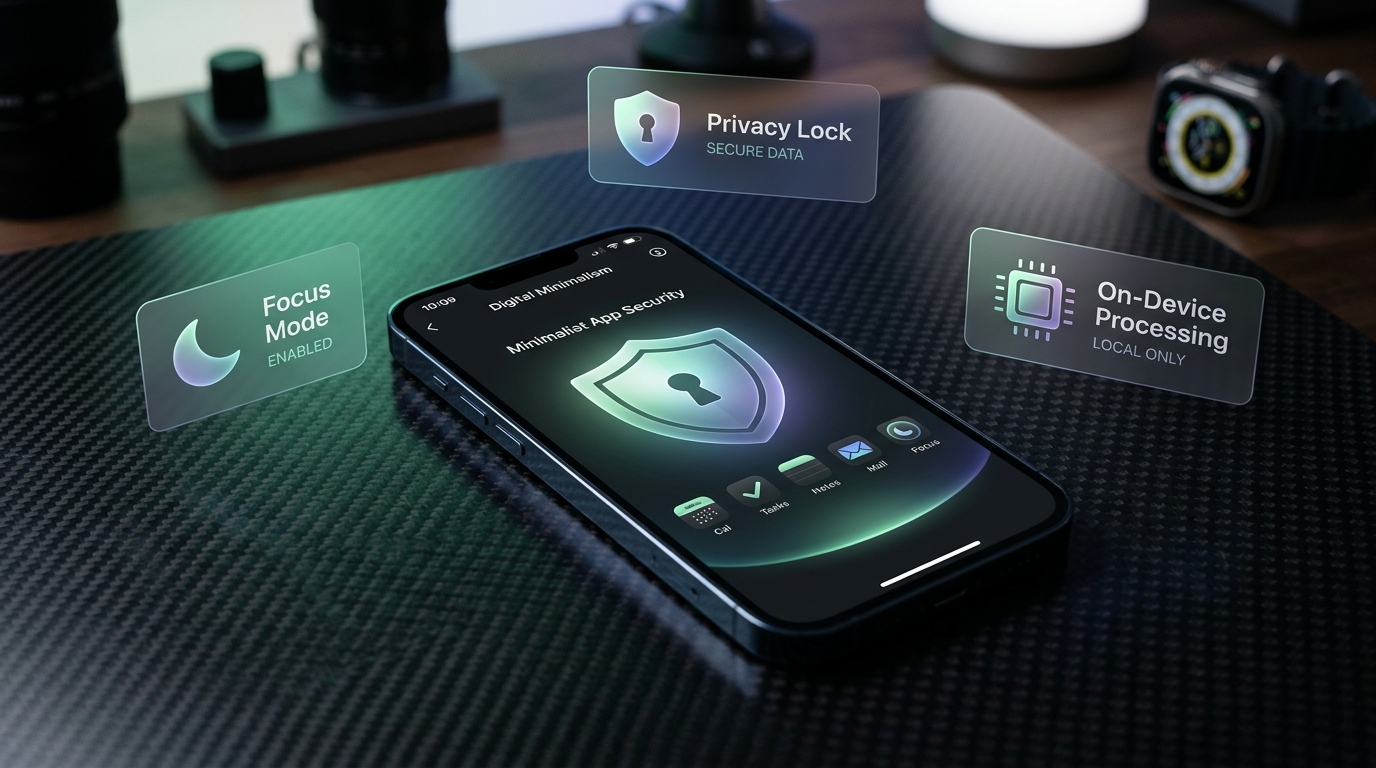
Instead of fighting iOS with clunky VPN profiles or asking someone else to babysit your phone, FocusWell layers behavioral psychology directly on top of Apple's system-level shields (FamilyControls, ManagedSettings, and DeviceActivity).
Here is how FocusWell closes each gap that native Screen Time leaves wide open:
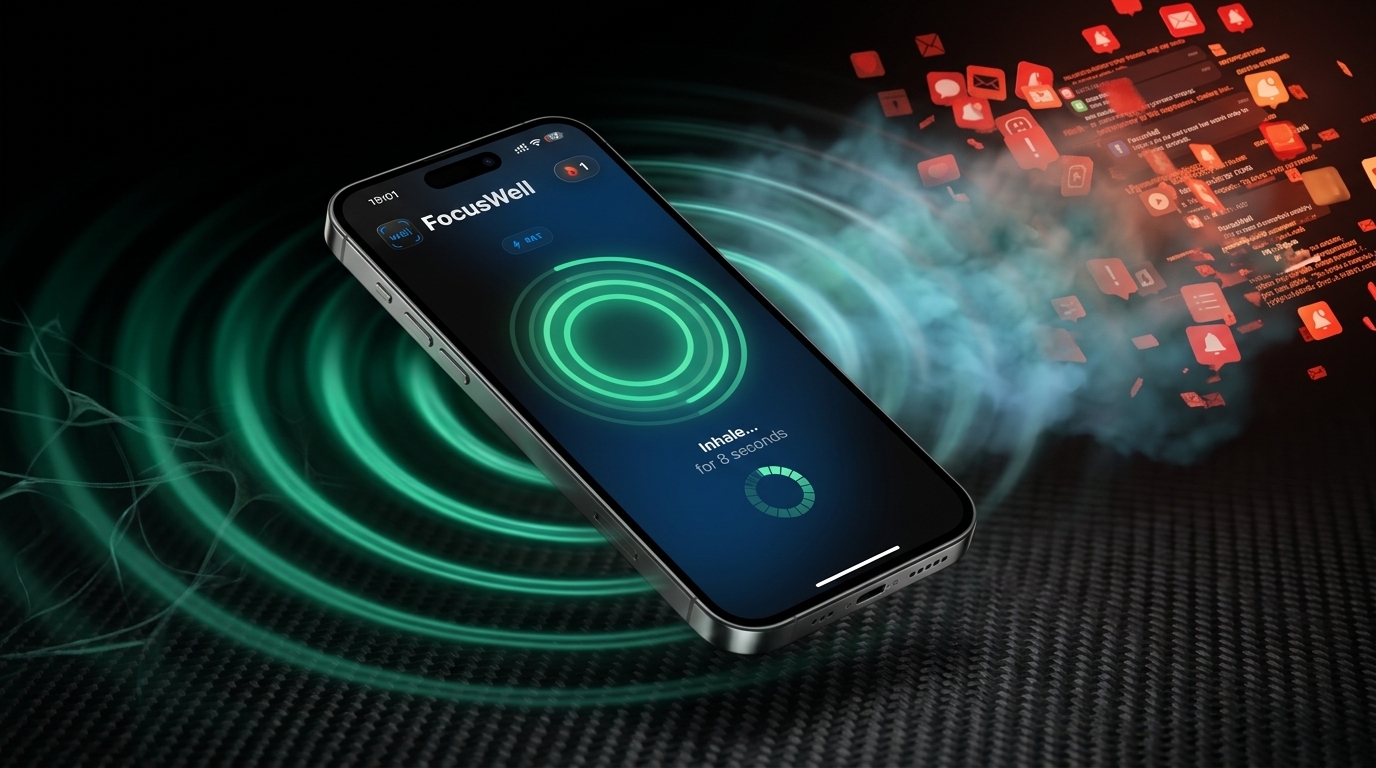
- Mindful Friction Gates Replace "Ignore Limit": When you try to open a shielded app or request a temporary break, FocusWell inserts an intentional cognitive pause. With Friction Gates, you meet interventions like Breathe With Us (an 8-second exhale cadence), One Math Move (three quick arithmetic slots that wake up the prefrontal cortex), Intent Check (four reflective questions asking why you want in), Nothing Happens (8 seconds of quiet stillness), The Number Climbs, or One Word ("Type it. Mean it."). That 8-second window breaks subconscious motor loops before you ever see a feed; explore the brain mechanics behind this in the neuroscience of the 8-second pause.
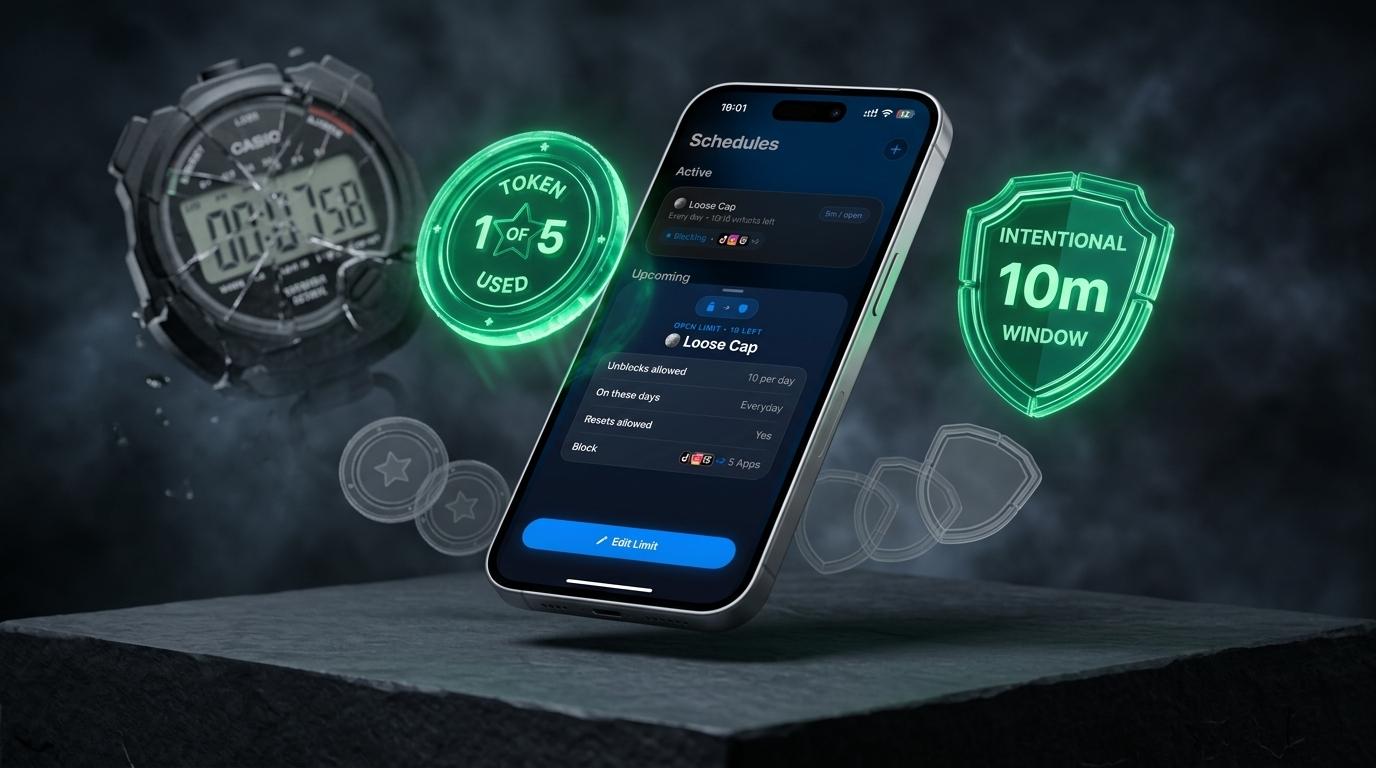
- Open Limits Stop Compulsive Pocket-Checking: Rather than letting you pick up your phone 50 times inside a 45-minute quota, Open Limits cap the number of launches per day (for example, 4 opens of Instagram, each unlocking a 10-minute window). When opening an app costs one finite launch token, mindless elevator scrolling vanishes.
- Strict Fast Focus for Zero-Negotiation Deep Work: When you need an unbreakable sprint—whether 25 minutes or 12 hours—Fast Focus offers both Flexible mode (allowing mindful breaks) and Strict mode (locking distracting apps with no pause option until the timer ends).
- Live Activities Keep Breaks Honest: During an unlocked window or break, FocusWell displays a live countdown on your Lock Screen and Dynamic Island with an immediate End Break or End Unlock button, preventing a 5-minute check from mutating into a 40-minute spiral.
Native iOS Restrictions vs. FocusWell: Which Setup Should You Use?
Use native iOS Content & Privacy Restrictions to seal technical loopholes like Safari web feeds and app deletion, then pair them with FocusWell for daily Open Limits, Friction Gates, and Schedules. Together, they address both system security and human impulse.
Let's be candid about platform boundaries: FocusWell is built strictly in native Swift and SwiftUI for iPhone and iPad, so it will not lock down an Android phone or a Windows PC. If your main distraction happens on a desktop browser, pair FocusWell on iOS with a dedicated desktop site blocker.
For iPhone users, however, combining iOS's built-in deletion lock with FocusWell's daily architecture solves the complete loop:
- Lock the Escape Hatches Once: In
Settings > Screen Time > Content & Privacy Restrictions, disable app deletion and block the web versions of your top three time-sink sites under Web Content. - Set Your Daily Launch Budget: Inside FocusWell, assign Open Limits to social and news apps instead of permissive minute budgets.
- Automate Your Day with Schedules: Configure Schedules for morning quiet hours, weekday deep work using Allow Lists (blocking everything except essential tools), and a firm digital sunset before bed.
- Review the Weekly Truth Report: Every Sunday, check your Weekly Truth Report to see real-world equivalents—stolen sleep minutes, peak scrolling days, and projected lifespan spent on glass—so your motivation comes from clarity rather than guilt.
Apple Screen Time gives you the lock on the door, yet leaves the key sitting in the ignition. By locking down iOS's backdoors and replacing instant overrides with mindful friction and launch limits, you stop relying on fragile willpower and start designing an environment where focus happens automatically.
Ready to stop tapping "Ignore Limit" on autopilot? Download FocusWell on the App Store (with a 3-day or 7-day free trial) and build an unbypassable iPhone setup in under two minutes.
Ready to break the compulsive scroll cycle?
Ready to close the Ignore Limit loophole for good? Try FocusWell free on iOS with native Screen Time shields and Mindful Friction Gates.
Free 3-Day Trial•100% On-Device & Private•Native Apple Screen Time

Founder & Maker of FocusWell
Founder of FocusWell. Native iOS developer building on-device Screen Time API tools designed around behavioral psychology rather than willpower.