How to Turn Your iPhone Into a 'Dumb Phone' Without Buying Hardware
Build a dumb phone on your iPhone—no $300 Light Phone needed. Compare Assistive Access caveats, Grayscale, clean Home Screens, and FocusWell Allow Lists.
Every few months, a minimalist creator goes viral for trading their iPhone for a $300+ Light Phone or a retro flip phone. The dream is undeniably appealing: no infinite feeds, no algorithmic news, no anxious thumb twitches in grocery lines—just calls, texts, and quiet presence.
Then reality arrives on Monday morning. You need Maps with live traffic, Apple Pay at the train turnstile, a mobile boarding pass, an Uber home in the rain, a sharp camera for your kid's soccer goal, or a work authentication code. Carrying two phones turns into a charging chore, and sacrificing modern utility causes most "dumb phone" converts to relapse back onto their smartphone within 90 days.
You do not need $300 of secondary hardware—or a crippled flip phone—to reclaim your mind. With five deliberate iOS adjustments and an Allow List architecture, you can turn the iPhone already in your pocket into a calm, zero-feed smart dumb phone in fifteen minutes.
Why Dedicated Dumb Phones (And Apple's Assistive Access) Often Backfire
Dedicated dumb phones cost $300+ and strip away indispensable tools like Maps, Apple Pay, rideshares, and cameras. Meanwhile, Apple's built-in Assistive Access mode mimics a dumb phone awkwardly by breaking Spotlight, disabling standard navigation gestures, and crippling everyday banking and travel apps.
Before diving into the setup, let's address the two shortcuts most people try first:
- Buying a Hardware Dumb Phone (Light Phone, Punkt, Flip Phones): While refreshing on a weekend cabin retreat, living full-time without mobile tickets, banking 2FA, WhatsApp/iMessage compatibility, Spotify/Maps, or a reliable camera creates constant friction with modern logistics. You end up bringing your old iPhone "just for trips," and the second device slowly migrates back into your pocket.
- Enabling Apple's
Assistive Access(Settings > Accessibility > Assistive Access): Designed genuinely for users with cognitive accessibility needs, Assistive Access turns iOS into oversized cards and giant Back buttons. Hackers on social media often promote it as a free "dumb phone mode," yet daily use exposes steep caveats: Control Center disappears, many third-party apps render poorly or lose key buttons, Apple Wallet and camera shortcuts slow down, and toggling it off takes seconds anyway.
The smarter goal is selective utility: keeping 100% of your iPhone's practical superpowers (navigation, payments, communication, photography) while cutting 100% of its slot-machine feeds.
The 5-Step iPhone Dumb Phone Blueprint
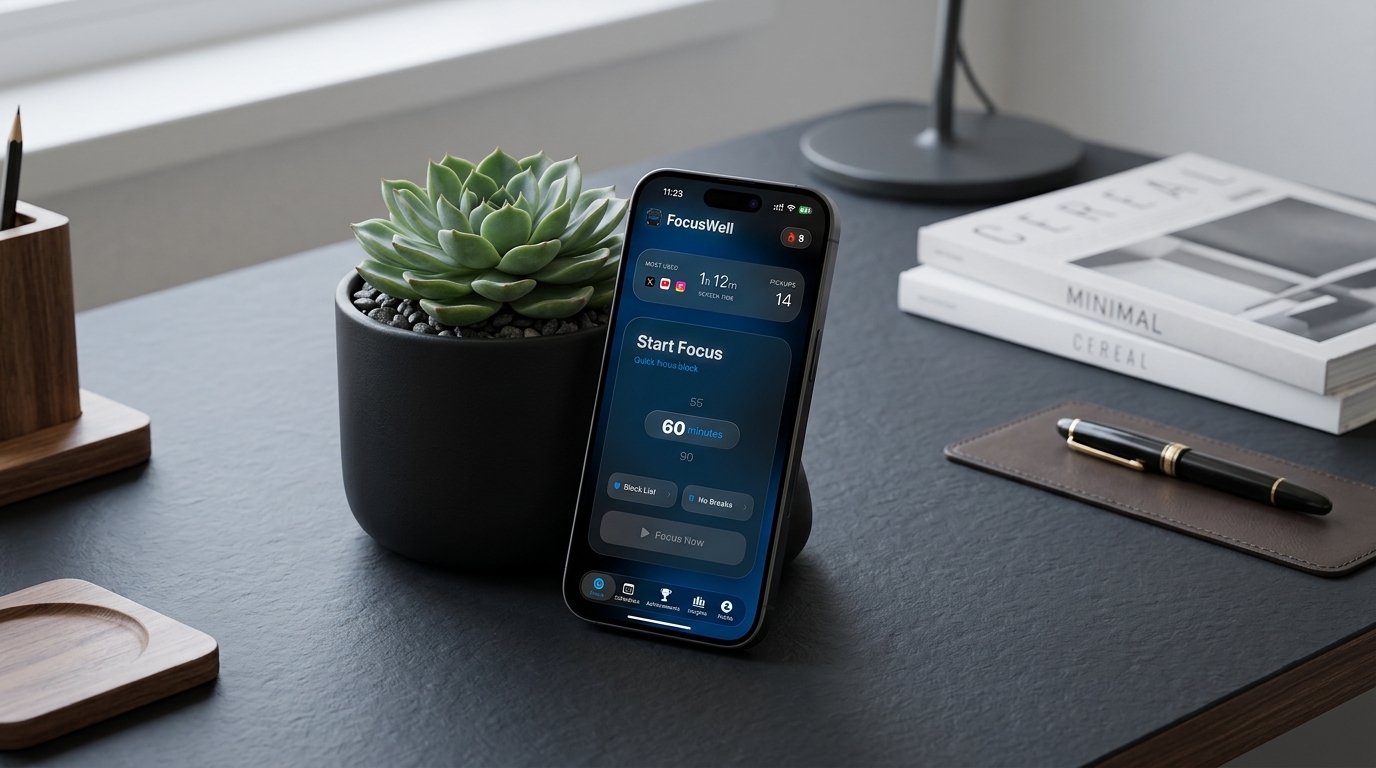
Transform your iPhone into a distraction-free dumb phone in five steps: strip your Home Screen down to essential utility icons, disable non-human alerts, activate Grayscale via Accessibility Shortcuts, seal Safari web feeds, and lock everything behind a FocusWell Allow List.
| Step | Action | Why It Works | Essential Tools Kept Safe |
|---|---|---|---|
| 1. One-Page Home Screen | Remove all social, news, & shopping apps from Home Screen | Eliminates visual dopamine cues on unlock | Phone, Messages, Camera, Maps, Calendar |
| 2. Zero Non-Human Alerts | Turn off badges & banners for every non-person app | Silences external triggers & false urgency | Calls, Texts, Calendar reminders |
| 3. Triple-Click Grayscale | Settings > Accessibility > Display & Text Size > Color Filters | Removes candy-coated icon appeal | Color restores instantly via triple-click for Photos/Maps |
| 4. Safari Feed Lockdown | Block instagram.com, tiktok.com, reddit.com, x.com | Closes mobile browser backdoors | Google Docs, banking, research portals |
| 5. FocusWell Allow List (VIP Pass) | Block All Apps except your core utility whitelist | Kernel-level shield stops App Library & Spotlight cheats | Maps, Wallet, Camera, Banking, Spotify, Notes |
Step 1: Strip Your Home Screen to One Quiet Page
Hold down your wallpaper, tap Remove App > Remove from Home Screen on every feed, game, browser, shopping app, and news reader. Leave only a single page holding genuine tools: Phone, Messages, Maps, Camera, Clock, Notes, Calendar, and Wallet. Set a solid matte dark or warm stone wallpaper with zero widgets screaming headlines.
Step 2: Kill Every Non-Human Notification
Go to Settings > Notifications and turn off Allow Notifications—and especially red Badges—for news, email, shopping, delivery trackers, and social apps. A real dumb phone only rings or vibrates when an actual human is trying to reach you, or when a calendar event starts.
Step 3: Put Grayscale on a Triple-Click Toggle
Bright red badges and saturated thumbnails exploit human visual wiring. Go to Settings > Accessibility > Display & Text Size > Color Filters, turn it ON, and select Grayscale. Then go to Settings > Accessibility > Accessibility Shortcut and select Color Filters. Now triple-clicking the Side Button turns your screen into calm monochrome ink—and triple-clicking restores full color temporarily whenever you take a photo or read a complex transit map.
Step 4: Seal the Safari Escape Hatch
A minimalist Home Screen accomplishes nothing if you still open reddit.com or youtube.com inside Safari. Head to Settings > Screen Time > Content & Privacy Restrictions > Content Restrictions > Web Content, select Limit Adult Websites, and add your top compulsive domains under Never Allow.
Step 5: Invert Your Phone with a FocusWell Allow List (VIP Pass)
Here is where the magic locks into place. Standard blockers use Block Lists, forcing you to play endless whack-a-mole every time you download a new distraction or discover a forgotten game inside your App Library.
Inside FocusWell, Allow Lists ("VIP Pass") invert the entire logic of your iPhone.
Instead of listing what to block, you tell FocusWell's native Apple Screen Time engine (FamilyControls and ManagedSettings): shield every single app on this device by default except my trusted utility list.
Your VIP Pass might contain only 8 to 12 essentials:
- Communication: Phone, Messages, WhatsApp (human-to-human only)
- Navigation & Transit: Apple Maps, Google Maps, Uber
- Finance & ID: Apple Wallet, Banking app, 1Password / Authenticator
- Capture & Life: Camera, Notes, Calendar, Kindle, Spotify
Once active via automated Schedules or a 12-hour Fast Focus block, your iPhone behaves cleanly like a $300 Light Phone—except your camera still shoots crisp family photos, Maps still routes around traffic, and Apple Pay still works at checkout. Because shields execute in the iOS kernel with zero VPN overhead, Spotlight Search and the App Library cannot bypass your boundary.
Discover what a dumb-phone lifestyle gives back: Run your current daily screen hours through the Screen Time Life Calculator to see how many waking years you reclaim by cutting passive feeds.
Keeping Flexibility Without Losing Discipline
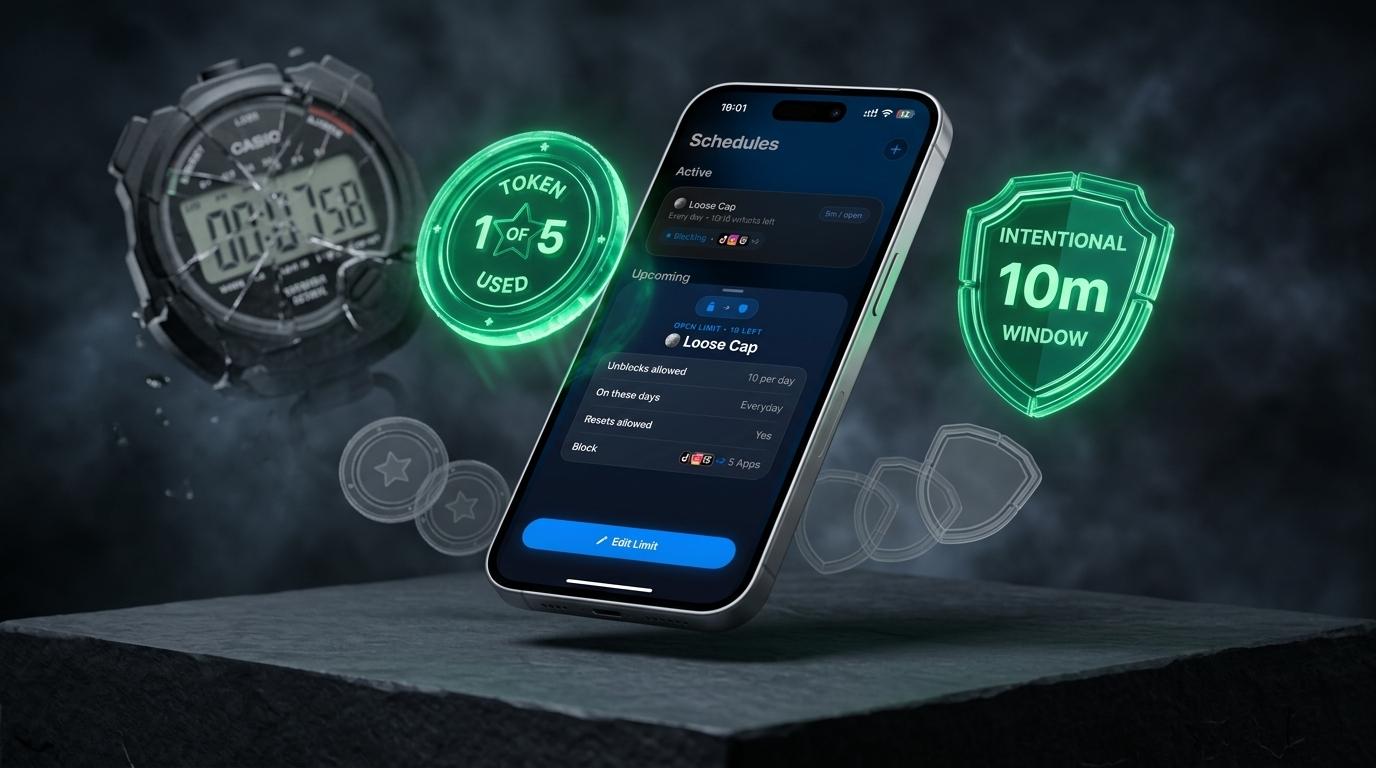
Extreme all-or-nothing detoxes fail when normal work and family life still require occasional social access. FocusWell prevents rebound binging by letting you pair workday Allow Lists with bounded evening Open Limits and Mindful Friction Gates, creating a realistic long-term dumb phone rhythm.
Wait—what if your job occasionally requires posting on LinkedIn, checking an Instagram DM from a client, or watching a specific tutorial on YouTube? That is where buying a physical dumb phone breaks down completely, and where an intelligent iOS setup thrives:
- Workday Dumb Phone Mode (8:30 AM – 5:30 PM): Run your Allow List (VIP Pass) schedule so your iPhone functions strictly as a tool during peak cognitive hours.
- Controlled Evening Window (5:30 PM – 9:00 PM): Transition to Open Limits for 2 or 3 intentional check-ins (e.g., 10 minutes per open, tracked cleanly on your Lock Screen via Live Activities). Every time you tap a feed, FocusWell's Friction Gates—like Breathe With Us, Intent Check, or One Word—confirm you are opening the app on purpose rather than by reflex.
- Digital Sunset (9:00 PM – 8:30 AM): Return automatically to full Allow List or Block All Apps shielding so your bedroom stays calm and your REM sleep stays untouched.
Be honest about one platform detail: FocusWell is built natively for iPhone and iPad only, so Android users should look at Android's built-in Digital Wellbeing Focus Mode paired with a minimalist launcher like Niagara or Olauncher. On iOS, however, native Swift/SwiftUI Screen Time APIs give you the cleanest possible blend of dumb-phone peace and smartphone capability.
What Life Feels Like After 14 Days in Dumb Phone Mode
Within two weeks of running a minimalist iPhone setup, average FocusWell users reclaim over two hours daily and cut compulsive doomscrolling by up to 60%. Quiet moments—standing in line, waiting for coffee, sitting beside family—return without requiring a second phone.
Most people expect boredom when their phone goes quiet. Instead, after three days of restlessness, something unexpected returns: mental spaciousness. You finish books faster. Conversations last longer without anyone glancing downward. Every Sunday, your Weekly Truth Report confirms the shift in concrete numbers—recovered hours, reclaimed sleep minutes, and years of life rescued from glass.
You already own the best minimalist utility device ever engineered; it simply needs firm software boundaries around the feeds designed to hijack it.
Ready to turn your iPhone into a calm dumb phone in five minutes flat? Download FocusWell on the App Store (with a 3-day or 7-day free trial) and activate your first Allow List (VIP Pass) today.
Ready to break the compulsive scroll cycle?
Keep Maps, Camera, and Wallet while turning every feed off automatically. Try FocusWell's Allow Lists (VIP Pass) free on iOS.
Free 3-Day Trial•100% On-Device & Private•Native Apple Screen Time

Founder & Maker of FocusWell
Founder of FocusWell. Native iOS developer helping people transform distraction machines back into calm, intentional tools.